SnackBar gives a brief message at the bottom of the screen on mobile devices and lower-left on larger devices and gets confirmation from the user. The snack bar automatically disappears after a certain amount of time.
Here, we are going to learn how we can implement a snack bar in Flutter. In Flutter, the snack bar only works with a scaffold widget context.
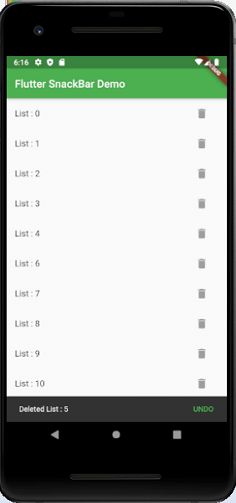
Let us take an example where we show the list of records, and contains a delete icon corresponding to every list. When we delete any record, it shows a message at the bottom of your screen. This message gets confirmation from the user. If it does not receive any confirmation, the message goes disappear automatically. The following example helps to understand it more clearly.
Create a Flutter project in Android Studio. Open the main.dart file and replace the following code.
import 'package:flutter/material.dart';

void main() => runApp(MyApp());

class MyApp extends StatelessWidget {
  @override
  Widget build(BuildContext context) {
    return MaterialApp(
      theme: ThemeData(
        primarySwatch: Colors.green,
      ),
      home: MyHomePage(),
    );
  }
}

class MyHomePage extends StatefulWidget {
  @override
  _MyHomePageState createState() => _MyHomePageState();
}

class _MyHomePageState extends State<MyHomePage> {
  var lists = List<String>.generate(11, (index) => "List : $index");
  @override
  Widget build(BuildContext context) {
    return Scaffold(
      appBar: AppBar(
        title: Text('Flutter SnackBar Demo'),
      ),
      body: ListView.builder(
        itemCount: lists.length,
        itemBuilder: (context, index) {
          return ListTile(
            title: Text(lists[index]),
            trailing: Container(
              width: 60,
              child: FlatButton(
                child: Icon(
                  Icons.delete,
                  color: Colors.grey,
                ),
                onPressed: () {
                  showSnackBar(context, index);
                },
              ),
            ),
          );
        },
      ),
    );
  }

  void showSnackBar(BuildContext context, int index) {
    var deletedRecord = lists[index];
    setState(() {
      lists.removeAt(index);
    });
    SnackBar snackBar = SnackBar(
      content: Text('Deleted $deletedRecord'),
      action: SnackBarAction(
        label: "UNDO",
        onPressed: () {
          setState(() {
            lists.insert(index, deletedRecord);
          });
        },
      ),
    );
    Scaffold.of(context).showSnackBar(snackBar);
  }
}
Output
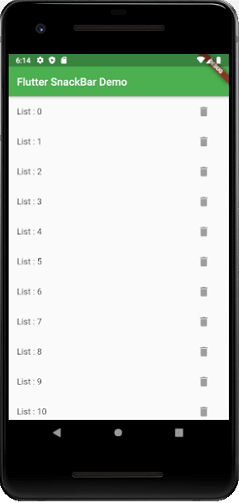
Now, run the app in Android Studio. You can see the following screen in the emulator. When you delete any list, it shows a message at the bottom of the screen. If you tap on the undo, it does not remove the list.
Leave a Reply