This widget arranges its children in a vertical direction on the screen. In other words, it will expect a vertical array of children widgets. If the child widgets need to fill the available vertical space, we must wrap the children widgets in an Expanded widget.
A column widget does not appear scrollable because it displays the widgets within the visible view. So it is considered wrong if we have more children in a column which will not fit in the available space. If we want to make a scrollable list of column widgets, we need to use the ListView Widget.
We can also control how a column widget aligns its children using the property mainAxisAlignment and crossAxisAlignment. The column’s cross-axis will run horizontally, and the main axis will run vertically. The below visual representation explains it more clearly.
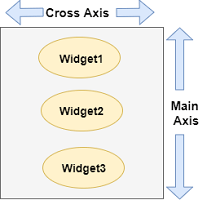
Note: Column widget also aligns its content by using the same properties as we have discussed in row widget such as start, end, center, spaceAround, spaceBetween, and spaceEvenly.
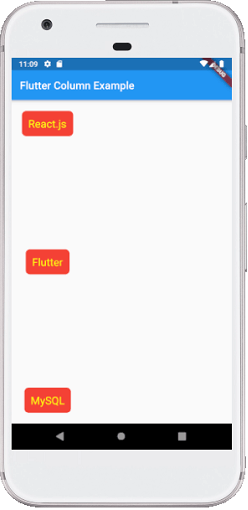
Let us understand it with the help of an example where we are going to align the content such that there is a free space between the children evenly in a column:
import 'package:flutter/material.dart';

void main() { runApp(MyApp()); }
class MyApp extends StatelessWidget {
  @override
  Widget build(BuildContext context) {
    return MaterialApp(
        home: MyHomePage()
    );
  }
}

class MyHomePage extends StatefulWidget {
  @override
  _MyHomePageState createState() => _MyHomePageState();
}

class _MyHomePageState extends State<MyHomePage> {
  @override
  Widget build(BuildContext context) {
    return Scaffold(
      appBar: AppBar(
        title: Text("Flutter Column Example"),
      ),
      body: Column(
          mainAxisAlignment: MainAxisAlignment.spaceBetween,
          children:<Widget>[
            Container(
              margin: EdgeInsets.all(20.0),
              padding: EdgeInsets.all(12.0),
              decoration:BoxDecoration(
                  borderRadius:BorderRadius.circular(8),
                  color:Colors.red
              ),
              child: Text("React.js",style: TextStyle(color:Colors.yellowAccent,fontSize:20),),
            ),
            Container(
              margin: EdgeInsets.all(20.0),
              padding: EdgeInsets.all(12.0),
              decoration:BoxDecoration(
                  borderRadius:BorderRadius.circular(8),
                  color:Colors.red
              ),
              child: Text("Flutter",style: TextStyle(color:Colors.yellowAccent,fontSize:20),),
            ),
            Container(
              margin: EdgeInsets.all(20.0),
              padding: EdgeInsets.all(12.0),
              decoration:BoxDecoration(
                  borderRadius:BorderRadius.circular(8),
                  color:Colors.red
              ),
              child: Text("MySQL",style: TextStyle(color:Colors.yellowAccent,fontSize:20),),
            )
          ]
      ),
    );
  }
}
Output:
When we run this app, we should get the UI as the below screenshot.
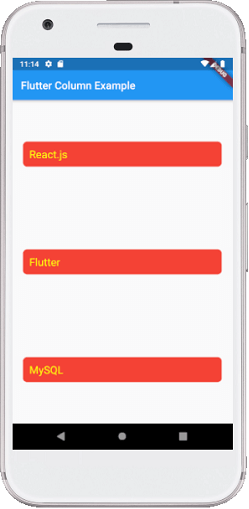
Flutter also allows developers to align the child widget with a combination of crossAxisAlignment and mainAxisAlignment for both row and column widget. Let us take the above example of column widget where we will set mainAxisAlignment as MainAxisAlignment.spaceAround and crossAxisAlignment is CrossAxisAlignment.stretch. It will make the height of the column is equal to the height of the body. See the below screenshot.
Leave a Reply